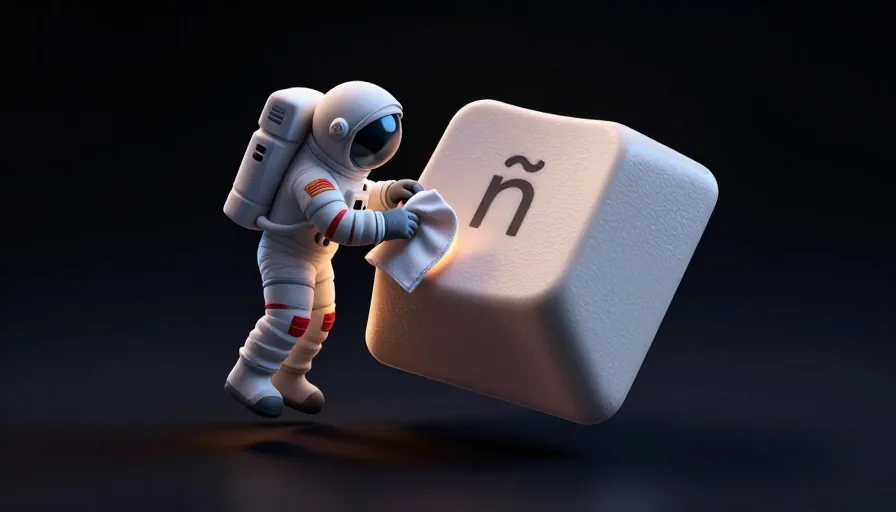
Learning how to do Spanish accent on keyboard is crucial for anyone looking to type accurately in Spanish. This guide will walk you through the various methods to input Spanish diacritics and special characters, ensuring your writing is both correct and efficient.
Understanding Spanish Diacritics: Why Accents Matter
Spanish uses several diacritical marks to alter the sound or meaning of letters. The most common are:
- Á, É, Í, Ó, Ú: Acute accents that change the stress of the syllable.
- Ü: Diaeresis that indicates a separate pronunciation of the 'u'.
- Ñ: Tilde that changes the sound of 'n'.
- ¿, ¡: Inverted question and exclamation marks that denote the start of a question or exclamation.
Incorrect accentuation can change the meaning of a word or make it unrecognizable. For example, 'si' means 'if' or 'yes', but 'sí' means 'yes' with emphasis.
Common Mistakes in Accent Usage
- Omitting Accents: 'Mama' vs. 'mamá' (mother vs. a generic term for a female figure).
- Incorrect Placement: 'El niño' (the boy) vs. 'el niño' (the child).
- Using Wrong Accent: 'Si' vs. 'Sí' (if vs. yes).
Method 1: Using Built-in Keyboard Shortcuts (Windows/Mac)
Windows
-
Alt Codes: Hold down the
Altkey and type the numeric code on the numeric keypad.- á:
Alt + 0225 - é:
Alt + 0233 - í:
Alt + 0237 - ó:
Alt + 0243 - ú:
Alt + 0250 - ü:
Alt + 0252 - ñ:
Alt + 0241 - ¿:
Alt + 0191 - ¡:
Alt + 0161
- á:
-
Character Map: Open the Character Map utility and copy-paste the desired character.
Mac
- Option Key Combinations: Use the
Optionkey along with another key to produce the accented character.- á:
Option + e, thena - é:
Option + e, thene - í:
Option + e, theni - ó:
Option + e, theno - ú:
Option + e, thenu - ü:
Option + u, thenu - ñ:
Option + n - ¿:
Option + ? - ¡:
Option + 1
- á:
Method 2: Utilizing Online Tools and Copy/Paste Solutions
For quick and easy access, online tools and copy-paste solutions can be very handy. Websites like SpanishDict offer character maps where you can copy and paste the needed characters directly into your document.
Checklist for Using Online Tools
- Find a reliable online character map.
- Copy the desired character.
- Paste it into your document.
- Verify the accuracy of the character.

Learn Languages with YouTube
Watch videos in your target language, auto-capture words into flashcards, and track your progress — all in one place.
See How It Works →Method 3: Using Third-Party Software Solutions
For more advanced users, third-party software solutions can streamline the process of typing Spanish diacritics. Tools like PopChar for Mac or AllChars for Windows provide extensive character sets and easy input methods.
Setting Up Third-Party Software
- Download and Install: Choose a software solution that fits your needs and install it.
- Configure Shortcuts: Customize the shortcuts to match your typing style.
- Practice: Use the software regularly to become proficient.
Advanced Tip: Setting Up Custom Input Methods for Efficiency
Windows
- Microsoft Keyboard Layout Creator: Create a custom keyboard layout that includes all the Spanish diacritics you need.
- AutoHotkey: Use this scripting language to create custom shortcuts for frequently used characters.
Mac
- Karabiner-Elements: Customize your keyboard layout to include Spanish diacritics.
- Ukelele: Design your own keyboard layout with this open-source tool.
Contextual Usage: Why Correct Accentuation Matters in Spanish
Correct accentuation is not just about grammar; it's about clarity and respect for the language. Incorrect accents can lead to misunderstandings and may even offend native speakers. For example, 'El niño come' (The boy eats) vs. 'El niño come' (The child eats).
Mini Drill: Correct vs. Incorrect Accent Usage
- Incorrect: 'Si quieres, vamos al cine.' (If you want, we go to the cinema.) Correct: 'Sí quieres, vamos al cine.' (Yes, if you want, we go to the cinema.)
- Incorrect: 'El perro es muy grande.' (The dog is very big.) Correct: 'El perro es muy grande.' (The dog is very big.)
- Incorrect: 'La casa es muy bonita.' (The house is very pretty.) Correct: 'La casa es muy bonita.' (The house is very pretty.)
Comparison of Different Typing Methods
Alt Codes vs. Dedicated Software
- Alt Codes: Quick and easy for occasional use but can be cumbersome for frequent typing.
- Dedicated Software: More efficient for regular use but requires initial setup and learning.
Practical Examples
- Email: 'Hola, ¿cómo estás?' (Hello, how are you?)
- Document: 'El niño juega en el parque.' (The child plays in the park.)
- Social Media: '¡Qué día tan bonito!' (What a beautiful day!)
Conclusion
Mastering how to do Spanish accent on keyboard is essential for accurate and efficient typing in Spanish. Whether you use built-in shortcuts, online tools, or third-party software, the key is to find a method that works best for you and practice regularly. By doing so, you'll not only improve your typing skills but also enhance your overall language proficiency.
Checklist for Mastering Spanish Accents
- Learn the common Spanish diacritics and their usage.
- Practice using built-in keyboard shortcuts on your operating system.
- Explore online tools and copy-paste solutions for quick access.
- Consider third-party software for advanced input methods.
- Set up custom input methods for efficiency.
- Regularly practice and integrate Spanish diacritics into your typing.
FAQ
Can I use the same keyboard shortcuts for Spanish accents on both Windows and Mac?
No, the keyboard shortcuts for Spanish accents differ between Windows and Mac. Windows uses Alt codes, while Mac uses Option key combinations. It's best to learn the specific shortcuts for your operating system.
Are there any free tools available for typing Spanish accents?
Yes, there are several free tools available. Online character maps and copy-paste solutions are readily accessible. Additionally, some third-party software offers free trials or basic versions that can be useful.
Why is it important to use the correct accents in Spanish?
Correct accents in Spanish are crucial for clarity and accuracy. They can change the meaning of words and are essential for proper pronunciation and grammar. Incorrect accents can lead to misunderstandings and may even offend native speakers.
Related phrases
Start with Metheus
Watch videos in your target language, auto-capture words into flashcards, and track your progress — all in one place.
Get Started →